
HTML Links and Images: Complete Beginner Guide (Chapter 3)
Learn HTML links, images, absolute and relative URLs, the anchor tag, image tag, alt attribute, and clickable images with simple examples. Perfect beginner-friendly HTML Chapter 3.

HTML Links and Images
Welcome to Chapter 3 of our HTML learning journey.
In Chapter 2, we learned how to create headings, paragraphs, line breaks, horizontal lines, and format text using different HTML tags.
Now it's time to make our web pages more useful and interactive. Imagine opening a website where you can't click anything or see any images. It would feel boring.
HTML allows us to add links that take users to other pages and images that make websites attractive. Let's learn them one by one.
What Are HTML Links?
Links allow users to move from one web page to another.
Whenever you click a menu item, button, or text that opens another page, you're clicking an HTML link. HTML uses the anchor tag to create links.
<a href="hhttps://www.apnaconverter.com">Visit ApnaConverter</a>Output:
Visit ApnaConverterThe clickable text is Visit Google. The browser opens the website mentioned inside the href attribute.
Understanding the href Attribute
The href attribute tells the browser where the link should go.
Example:
<a href="https://www.apnaconverter.com">Open ApnaConverter</a>Here,
- <a> means Anchor Tag.
- href means Hypertext Reference.
- The URL inside href is the destination.
Opening a Link in a New Tab
Sometimes you don't want users to leave your website. You can open a link in a new browser tab.
Example:
<a href="https://www.apnaconverter.com" target="_blank">
Open Apnaconverter
</a>
The target="_blank" attribute opens the link in a new tab.
Absolute URL
An absolute URL contains the complete website address.
Example:
<a href="https://www.apnainsights.com">
    Visit ApnaInsights
</a>
The browser knows exactly where to go.
Relative URL
A relative URL is used to connect pages within the same website. Suppose your project looks like this:
project/
│
├── index.html
├── about.html
└── contact.html
To open the About page:
<a href="about.html">About Us</a>To open the Contact page:
<a href="contact.html">Contact</a>Relative URLs are commonly used while building websites.
Creating an Email Link
You can even open the user's email application.
Example:
<a href="mailto:hello@example.com">
    Send Email
</a>
When clicked, the default email application opens.
Creating a Phone Call Link
For mobile devices, HTML can directly start a phone call.
Example:
<a href="tel:+919876543210">
    Call Us
</a>
On smartphones, clicking this link opens the dialer.
What Are HTML Images?
Images make websites attractive and easier to understand. HTML uses the <img> tag to display images.
Example:
<img src="flower.jpg" alt="Beautiful Flower">Unlike many HTML tags, <img> does not have a closing tag.
Understanding the src Attribute
The src attribute tells the browser where the image is located.
Example:
<img src="nature.jpg" alt="Nature">If the browser finds the image, it displays it.
Understanding the alt Attribute
The alt attribute provides an alternative description of the image.
Example:
<img src="mountain.jpg" alt="Snowy Mountain">If the image cannot be loaded, users will see:
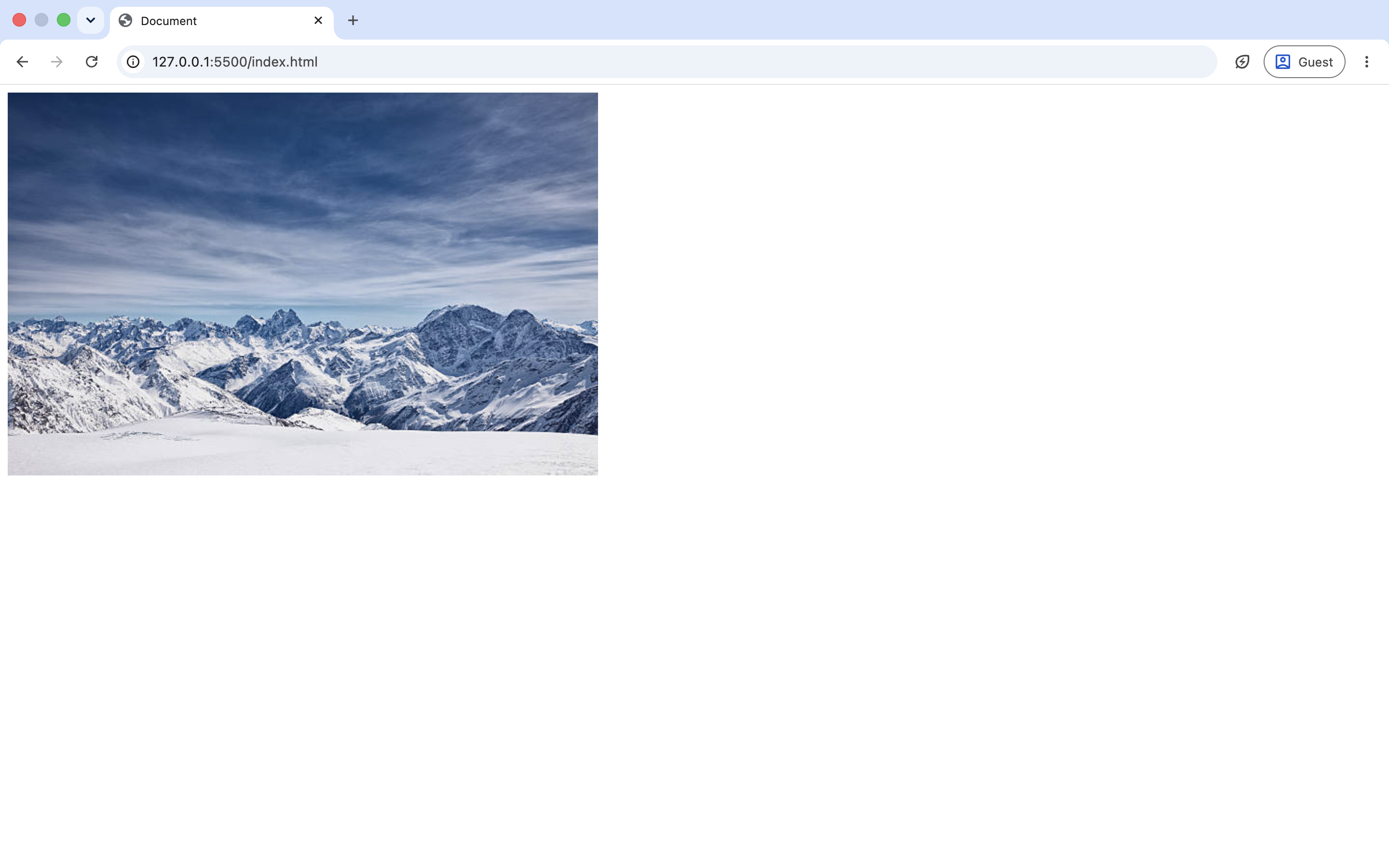
The alt attribute also helps screen readers and improves accessibility.
Setting Image Width and Height
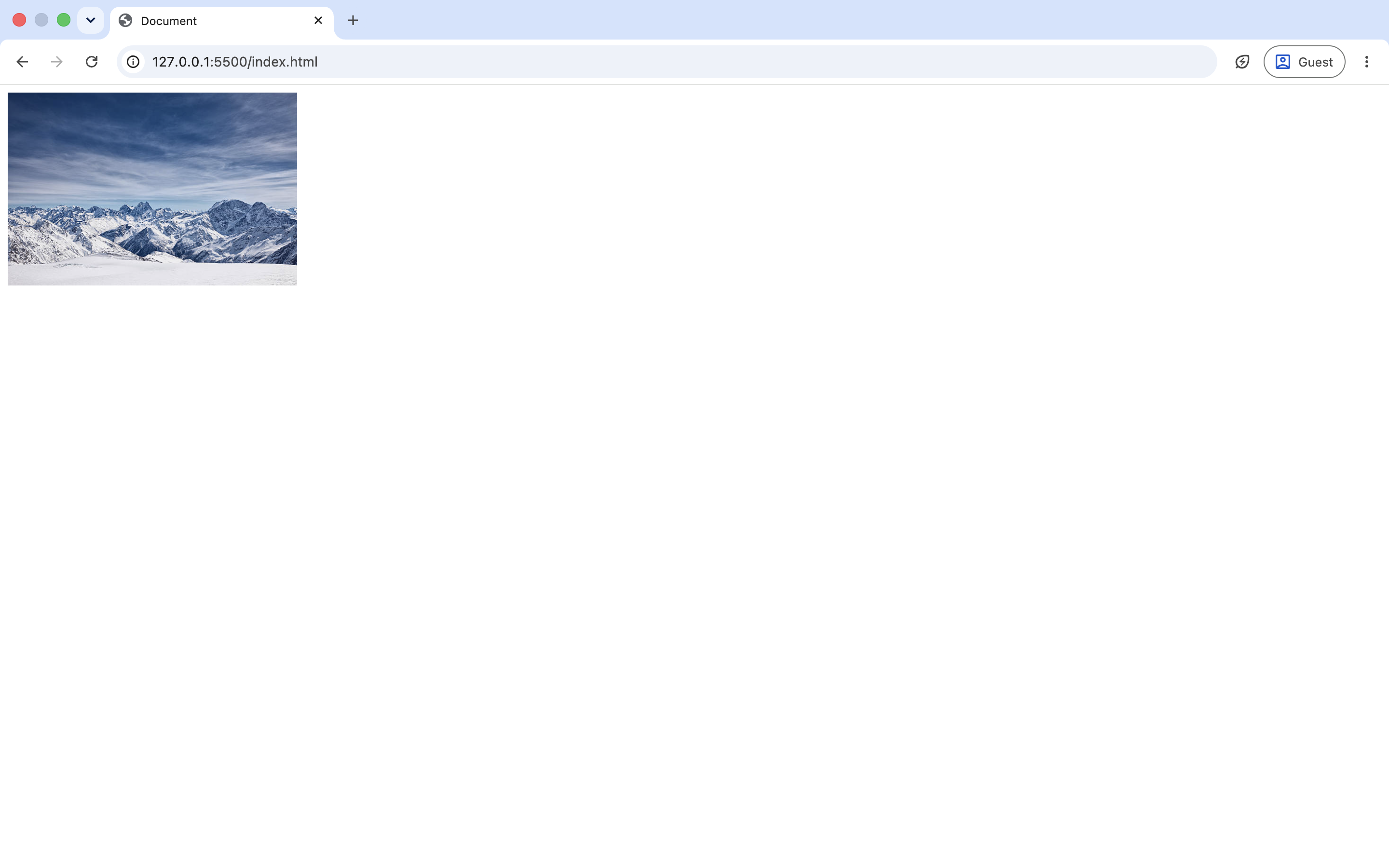
You can control the image size using the width and height attributes.
Example:
<img src="flower.jpg" alt="Flower" width="300" height="200">The browser displays the image with the specified size.
Images from the Internet
You can also display images using an online image URL.
Example:
<img src="https://example.com/image.jpg" alt="Example Image">The browser downloads and displays the image directly from the internet.
Images from Your Project Folder
Suppose your project looks like this:
project/
│
├── index.html
└── images/
      flower.jpg
You can display the image like this:
<img src="images/flower.jpg" alt="Flower">This is the most common method while developing websites.
Making an Image Clickable
You can place an image inside a link.
Example:
<a href="https://www.apnainsights.com">
    <img src="logo.png" alt="ApnaInsights Logo" width="200">
</a>
When users click the image, the website opens.
Practice Example
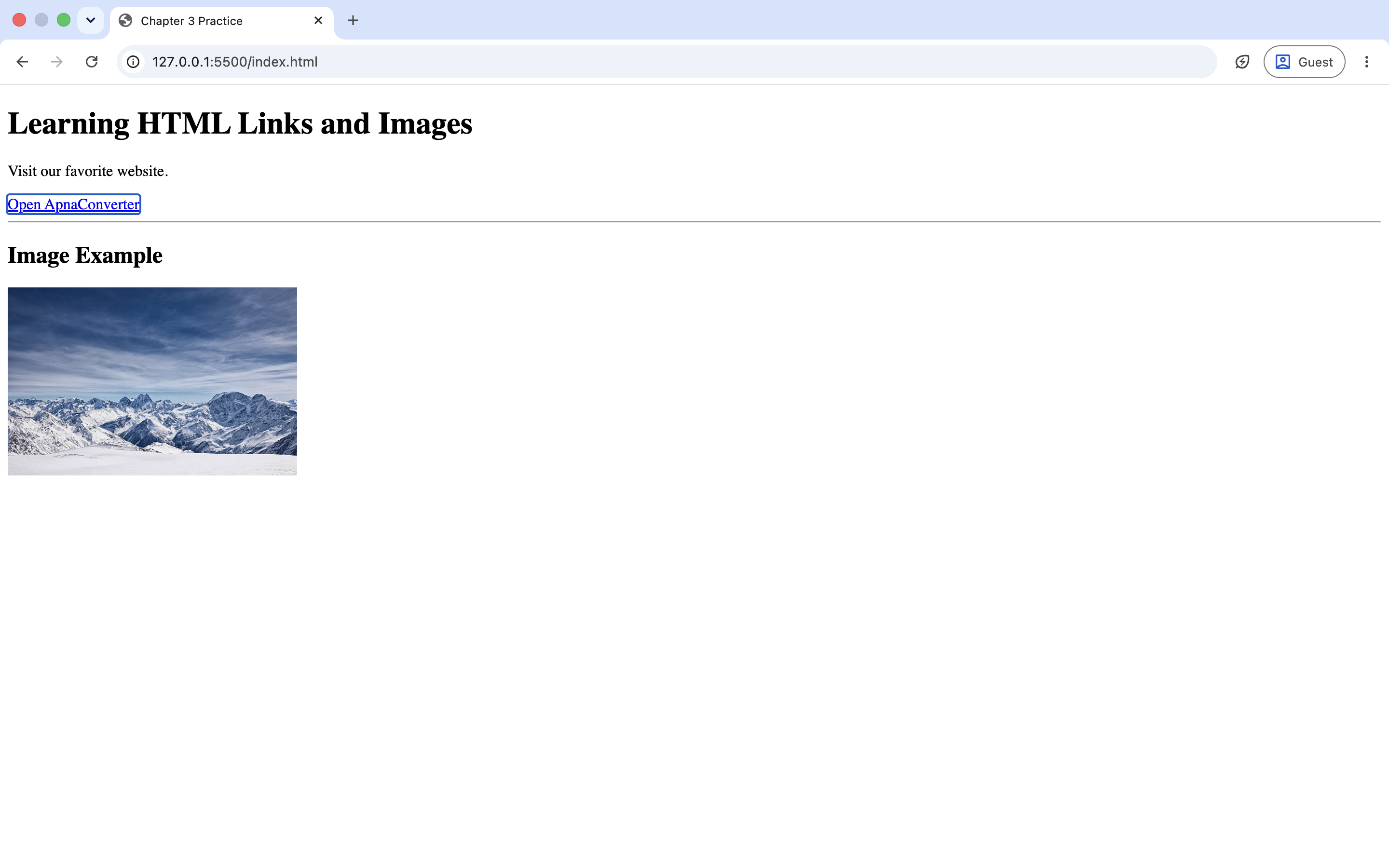
Create a file called practice.html and write:
<!DOCTYPE html>
<html>
<head>
    <title>Chapter 3 Practice</title>
</head>
<body>
    <h1>Learning HTML Links and Images</h1>
    <p>
        Visit our favorite website.
    </p>
    <a href="https://www.apnaconverter.com/" target="_blank">
        Open ApnaConverter
    </a>
    <hr>
    <h2>Image Example</h2>
    <img src="flower.jpg" alt="Flower Image" width="300">
</body>
</html>
Save the file and open it in your browser. Try changing the link and image to understand how they work. Learning HTML becomes much easier when you practice on your own.
Output:
Common Mistakes Beginners Make
1. Forgetting the href Attribute
Wrong:
<a>Google</a>Correct:
<a href="https://www.google.com">Googlev</a>Without the href attribute, the text will not work as a link.
2. Forgetting the alt Attribute
Wrong:
<img src="flower.jpg">Correct:
<img src="flower.jpg" alt="Flower">Always provide meaningful alternative text.
3. Using the Wrong Image Path
If your image is inside another folder, the browser won't find it unless you provide the correct path.
Wrong:
<img src="flower.jpg">Correct:
<img src="images/flower.jpg">4. Using Very Large Images
Large images slow down your website.
Resize and optimize images before using them.
Summary
In this chapter, you learned:- What HTML links are
- How to use the <a> tag
- What the href attribute does
- Absolute and relative URLs
- How to open links in a new tab
- How to create email and phone links
- How to display images using the <img> tag
- What the src and alt attributes are
- How to set image width and height
- How to make images clickable
Version History 1 update
- Aug 1, 2026
Updated: title, description, content, categories, tags, featuredImage, images, status, faqs, seriesName, seriesOrder, wordCount, readingTimeMinutes, slug, rejectionReason